Cheats, Mods & Save Files: Save Location and Full Unlock Options
Tame Me Hard! (Steam AppID 4071430) ships with Steam Cloud support on Windows, so your save data is automatically backed up to Valve's servers and can be inspected through your Steam account's cloud storage page. As of this writing, no official cheat codes, developer console, or verified community mods have been documented in the Steam Store page, Steam Community Discussions, or other sources checked for this guide, and the exact local save folder path has not been confirmed. This guide covers what is verified, how to safely locate and back up your save through Steam, and what to be careful about before trying any unofficial save editing.
Tame Me Hard! Save Location: What Is Confirmed
The Steam Store page lists Steam Cloud as a supported feature for Tame Me Hard!, which means the game's save files are synced to your Steam account whenever you close the game. The game is Windows-only, published by Saikey Studios and developed by IniBugyo, so there is only one platform to worry about when tracking down your save.
The precise local folder used by the game (for example a subfolder under your Windows user profile or the game's install directory) is UNVERIFIED in the sources available for this guide. Rather than guessing, the most reliable way to find your files is to go through Steam itself, since Steam Cloud keeps a list of every file it syncs for each game. The steps in the next section walk through that method.
Because the game uses Steam Cloud, any change you make to a local save file can be overwritten by the cloud copy, or trigger a sync-conflict prompt, the next time you launch the game. Keep this in mind before editing anything on disk.
- Steam AppID: 4071430 (use this number when looking for the game's folder inside Steam's own directories)
- Platform: Windows only
- Steam Cloud: Confirmed on the Store page
- Steam Achievements: Confirmed on the Store page
- Exact local save path: UNVERIFIED as of this guide
| Item | Status | Source |
|---|---|---|
| Steam Cloud save sync | Confirmed | Steam Store page feature list |
| Steam Achievements | Confirmed | Steam Store page feature list |
| Windows platform | Confirmed | Steam Store page |
| Local save folder path | Unverified | Not documented in checked sources |
| Official cheat codes / console | Not found | Steam Store page, Community Discussions |
| Community mods | Not found | Steam Store page, Community Discussions |
How to Find and Back Up Your Tame Me Hard! Save File
Steam provides a built-in page that lists every cloud-synced file for each game on your account. Open your browser, sign in to Steam, and visit the Steam Cloud storage page for your account. Find Tame Me Hard! in the list and click through to see the file names and sizes. This tells you exactly which files the game treats as save data without needing to know the local path in advance.
Once you know the file names, use Windows search inside your Steam installation folder and your user profile folder to locate the local copies. Copy them to a separate folder (for example on your desktop or an external drive) before making any changes. Because Tame Me Hard! is a single-player game with a debt deadline built into the story, losing a run to a corrupted save is a real setback, so a manual backup is worth the extra minute.
If you plan to edit a save or restore an older backup, temporarily disable Steam Cloud for the game first. In your Steam library, right-click Tame Me Hard!, open Properties, and turn off the Steam Cloud option for this title. This prevents the cloud copy from overwriting your edited file when you next launch the game. Re-enable it afterward if you want automatic backups again.
- Step 1: Open the Steam Cloud storage page in your browser and locate Tame Me Hard! (AppID 4071430) to see the synced file names
- Step 2: Search your Steam install folder and Windows user profile for those file names to find the local copies
- Step 3: Copy the files to a separate backup folder before editing or replacing anything
- Step 4: Disable Steam Cloud for the game in Steam Library > Properties before restoring or editing a save
- Step 5: Launch the game once to confirm the save loads, then re-enable Steam Cloud if desired
Tame Me Hard! Cheats and Full Unlock Options: What Actually Exists
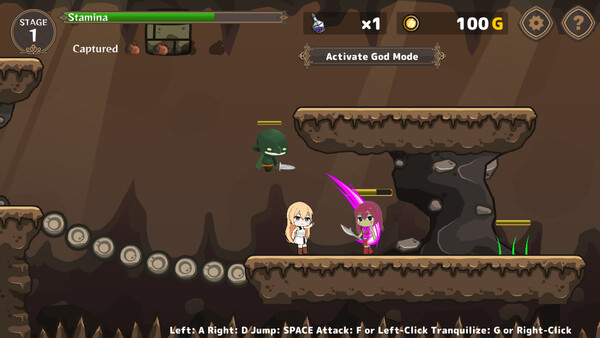
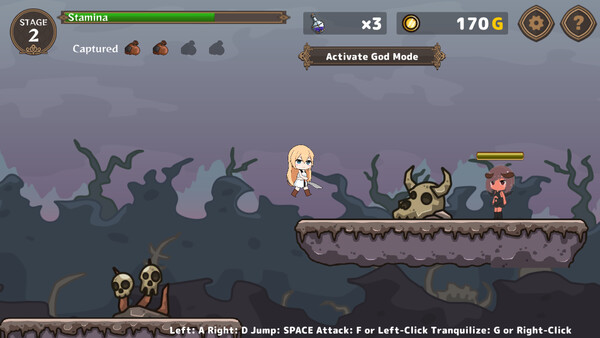
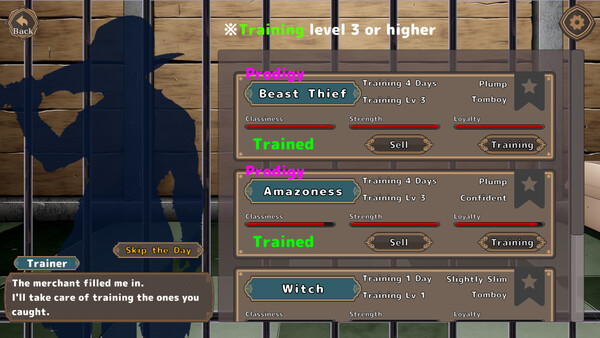
No official cheat codes, developer console commands, or in-game unlock-all options for Tame Me Hard! appear in the Steam Store description or the Steam Community Discussions reviewed for this guide. The game is a side-scrolling dungeon crawler where you capture, train, and sell creatures to pay off a debt before time runs out, so the values most players would want to alter are money and the debt timer. No verified method for changing these has been documented.
Keep in mind that Tame Me Hard! has Steam Achievements. If you use a third-party memory editor or a modified save file, achievements may unlock in an unintended order or fail to unlock at all, and there is no way to reset Steam achievements from within the game. If achievement progress matters to you, play through normally on a clean save and experiment with unofficial tools only on a separate backup.
A '100% save file' for the game has not been located in any of the sources used here. If one surfaces on community sites later, treat it the same way as any other unofficial download: back up your own save first, disable Steam Cloud for the game before copying the file in, and confirm that the file names match the ones listed on your Steam Cloud storage page.
- Official cheat codes: None documented
- Developer console: None documented
- In-game unlock-all option: None documented
- 100% save file: Not found in checked sources
- Achievement caveat: Steam Achievements are enabled, so unofficial edits may affect unlock behavior
Tame Me Hard! Mods and the F95zone Question
Searches for 'tame me hard! f95' show that many players expect to find community mods or modified builds on F95zone. At the time of writing, no community mods for Tame Me Hard! have been verified through the Steam Store page or Steam Community Discussions. Any mod claims you encounter should be treated as unconfirmed until you can inspect them yourself.
The game is listed as single-player only, so there is no multiplayer or online component that mods could disrupt for other people. The main risk is to your own save data and achievement progress, which is why the backup steps above matter. Note that Tame Me Hard! supports Family Sharing, so if another account on your PC shares the game, keep each account's Steam Cloud and save files separate to avoid cross-account overwrites.
For the most current information, check the Steam Community Discussions for Tame Me Hard! directly. Because the game released on 28 August 2026, the community is still young, and modding tools or save editors may appear over time. Sections of this guide marked unverified will be updated as reliable information becomes available.
- Verified community mods: None found in checked sources
- Single-player only: Mods cannot affect other players
- Family Sharing supported: Keep saves separate between shared accounts
- Best place to check for updates: Steam Community Discussions for AppID 4071430